

Is your Windows 11 computer feeling slower than it used to? Maybe it takes forever to start, apps open with a delay, or everything just feels heavy and unresponsive. If that sounds familiar, you’re definitely not alone. Many Windows 11 users experience slow performance over time, even on fairly good machines. speed-up-windows-11-pc
The good news is this: in most cases, a slow PC doesn’t mean it’s broken or outdated. Often, it just needs a little cleanup and a few smart adjustments. Below is a simple, step-by-step guide you can follow to bring your Windows 11 PC back to life—no technical skills required.
Disable Unnecessary Startup Programs
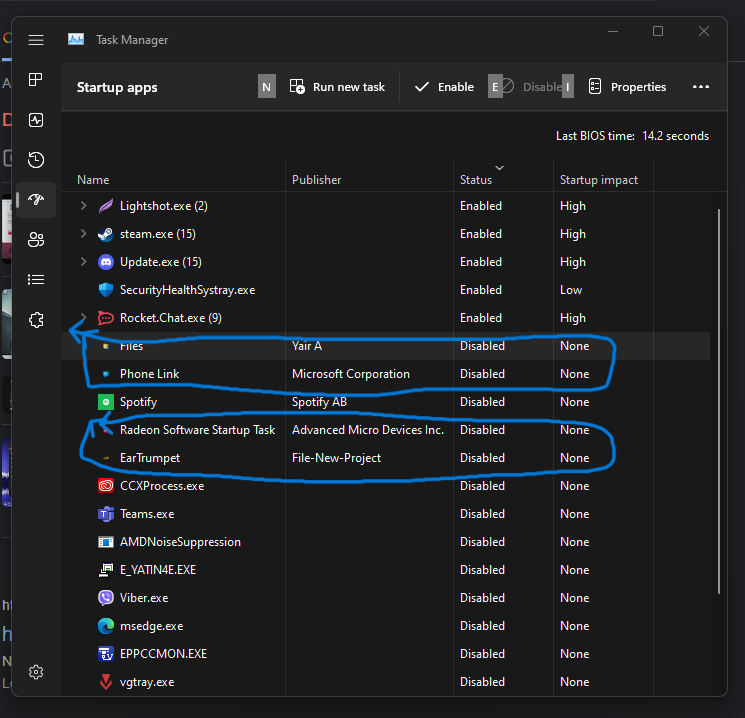
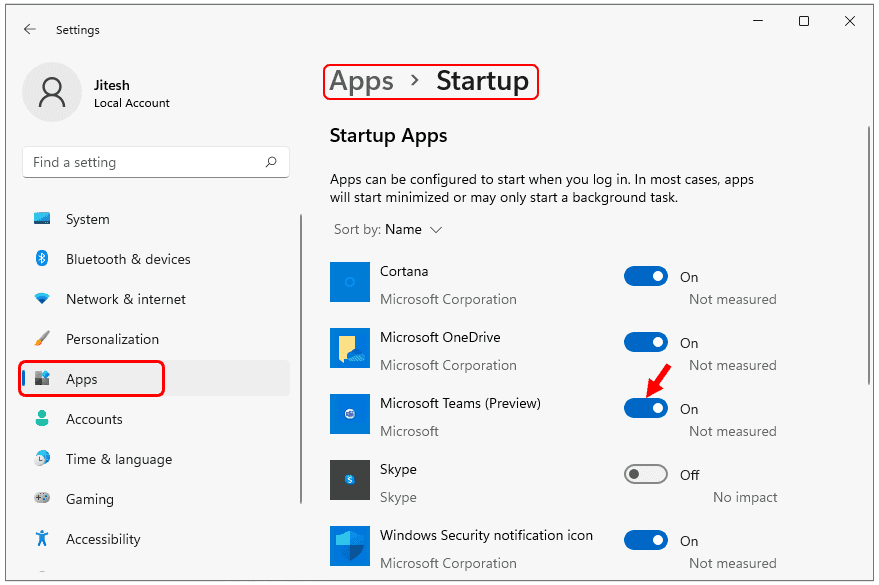
One of the biggest reasons Windows 11 feels slow is because too many programs start running the moment you turn on your computer. These background apps quietly consume memory and processing power, even when you don’t need them.
To fix this:
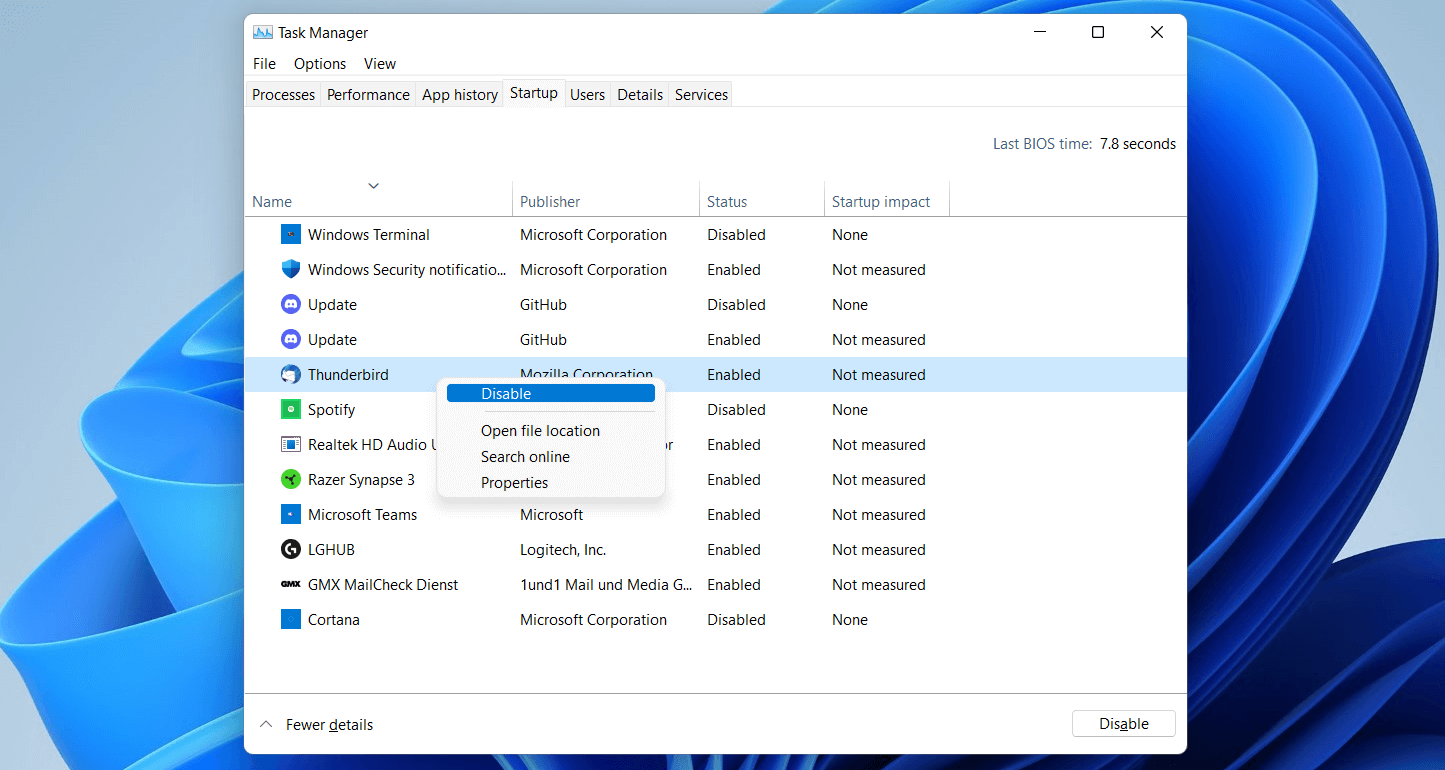
- Press Ctrl + Shift + Esc to open Task Manager
- Click on the Startup tab
- Look through the list of programs
- Disable anything you don’t absolutely need at startup
You’ll notice faster boot times and smoother performance almost immediately. Apps like messaging tools, game launchers, or update helpers don’t need to start with Windows unless you use them constantly. speed-up-windows-11-pc
Clean Temporary Files and System Junk
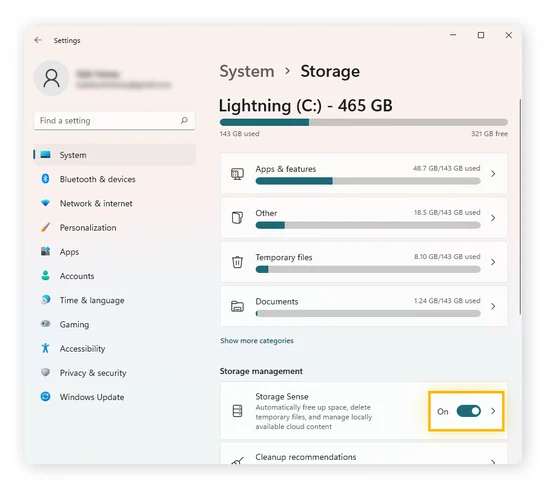
Over time, Windows collects temporary files, cached data, and leftover system files that serve no real purpose. These files take up disk space and can slow down your PC.
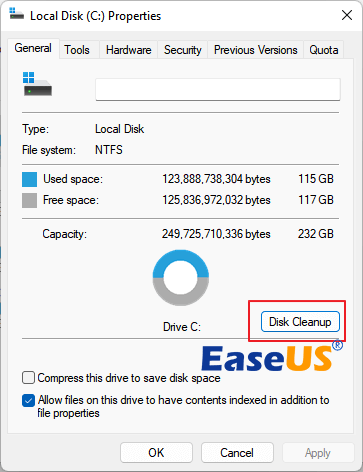
Here’s how to clean them safely:
- Open This PC
- Right-click on Local Disk (C:)
- Select Properties
- Click Disk Cleanup
- Check items like temporary files, recycle bin, and system cache
- Click OK to delete them
This simple step can free up several gigabytes of space and help your system run more smoothly.
Uninstall Programs You No Longer Use
Most of us install apps “just in case” and then forget about them. These unused programs can quietly run background services, slow down updates, and waste system resources.
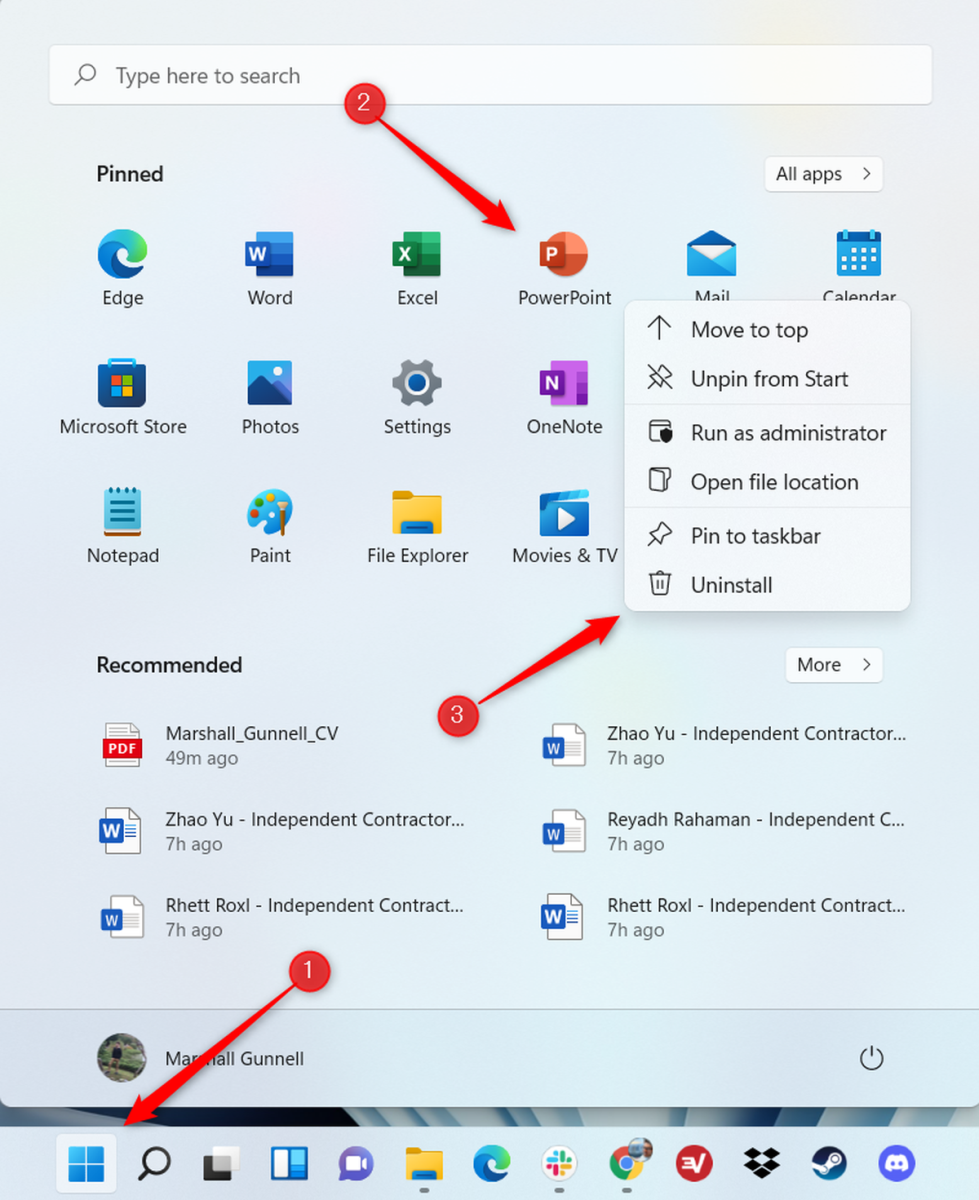
To remove them: speed-up-windows-11-pc
- Go to Settings
- Click Apps
- Open Installed Apps
- Review the list carefully
- Uninstall anything you no longer use or recognize
Removing unnecessary software not only speeds up your PC but also keeps your system cleaner and more secure.
Keep Windows 11 Updated
Windows updates are not just about new features—they often include performance improvements, bug fixes, and important security patches. Skipping updates can leave your PC slower and more vulnerable.
To check for updates:
- Open Settings
- Go to Windows Update
- Click Check for Updates
- Install all available updates
After updating, restart your PC to allow changes to take effect. Many users notice better stability and speed after staying up to date.
Reduce Visual Effects and Animations
Windows 11 looks beautiful, but those animations, shadows, and transparency effects use system resources—especially on older or low-spec PCs.
To turn them off:
- Open Settings
- Go to Accessibility
- Click Visual Effects
- Turn off Animations and Transparency
Your PC may look simpler, but it will feel noticeably faster and more responsive.
Scan for Viruses and Malware
Sometimes slow performance isn’t about settings—it’s about security. Malware and unwanted programs can secretly run in the background, draining your PC’s power.
To scan your system:
- Open Windows Security
- Click Virus & Threat Protection
- Select Quick Scan
If you suspect serious issues, consider running a full scan. Keeping your PC clean from malware is essential for long-term performance. speed-up-windows-11-pc
Restart Your PC Regularly
It might sound basic, but restarting your computer is incredibly effective. Over time, background processes pile up, memory gets overloaded, and performance drops.
Make it a habit to restart your PC at least once a week. This refreshes memory, stops unnecessary processes, and helps Windows run efficiently again.
Bonus Tip: Upgrade Hardware for a Big Performance Boost
If your PC is older and still slow after trying all these steps, a small hardware upgrade can make a huge difference:
- Add more RAM if your system supports it
- Switch from an HDD to an SSD for dramatically faster boot and load times
An SSD upgrade, in particular, can make an old PC feel brand new.
Final Thoughts
A slow Windows 11 PC can be frustrating, but in most cases, the solution is simpler than you think. By cleaning up startup programs, removing junk files, keeping Windows updated, and making a few smart adjustments, you can enjoy faster performance without spending money.
Take it step by step, and you’ll notice the difference sooner than you expect. Your PC doesn’t need to struggle—sometimes it just needs a little care.